
- PRODUCTSFREEWAREFOR COMMERCIAL USEFOR PERSONAL AND BUSINESS USEBackup and System Restore:PC Privacy and Security:
- BUY ONLINE
- DISTRIBUTION
- Contents
- Index
- A -
Advanced Settings
Disable computer standby/hibernation when a long task is running

- B -
- C -
Classic: Add files and folders to a wipe list from the shortcut menu
Classic: Aggregate Trraces
Classic: Associativity Traces
Stored AutoPlay Handlers Paths
Stored COM Interface Identifiers
Stored Custom File Type Associations
Stored e-Mail Programs Information
Stored Event Logging Applications Information
Stored Info of Connection IA Apps
Stored Info of Scan Button IA Apps
Stored Media Players Information
Stored News Readers Information
Stored Perceived Types Applications
Stored Recording Software Information
Stored System Program Identifiers
Stored Web Browsers Information
Classic: Button
Classic: Caches
Classic: Cleaning Internet Activity
Classic: Cleaning Personal Traces
Classic: Cleaning Program Traces
Classic: Files Wiping Settings
Classic: Free Drive Space Settings
Classic: Installer Traces
Installer's Temporary Files and Folders
Stored Installation Information
Stored Installer Components Paths
Stored Installer Registry Keys
Stored Programs and Features Info
Stored Programs and Features Paths
Stored Programs and Features Sources
Stored Store Install Information
Stored System Installation Information
Stored UWP Programs Uninstall Time
Classic: Integration Settings
Shortcut menu of Files and Folders
Wipe files and folders directly from the shortcut menu
Wipe free space directly from the shortcut menu
Wipe Recycle Bin from the shortcut menu
Classic: Items in Internet Explorer
Classic: Items in Microsoft Edge (New)
Heavy Ad Intervention Statistics
Network Persistence Statistics
Permission Notification History
Stored Services Network Traffic
Website Redirecting Statistics
Classic: Large wipe and clean task
Classic: Logs
AAD User Device Registration Log
Application Experience Events Log
AppLocker Executable Events Log
AppX Deployment Server Events Log
AppX Deployment Service Events Log
AppX Restricted Deployment Log
BranchCache Service Events Log
Client License Service Events Log
Data Integrity Recovery Events Log
Data Integrity Scan Events Log
Date and Time Control Panel Events Log
Delivery Optimization Service Events Logs
Deployment Image Service and Management Log
Device Install Service Events Log
DHCP Client Service Events Log
Diagnostic Policy Service Events Log
Local Session Manager Events Log
Network Connection Status Indicator Events Log
Network Diagnostics Events Log
Network Location Wizard Events Log
Network Setup Service Events Logs
NLA Network Profiles Events Log
Performance Diagnostics Events Log
Provisioning Diagnostics Events Log
Resource Exhaustion Detector Log
Scheduled Diagnostics Events Log
Scripted Diagnostics Events Log
Scripted Diagnostics Provider Log
Security Mitigations Events Log
Server-initiated Healing Events Logs
Setting Synchronization Debug Log
Setting Synchronization Events Log
SMB Client Security Events Log
State Repository Service Events Log
Storage Service Diagnostics Log
Storage Settings Diagnostics Log
StorPort Dagnostics Events Log
Task Scheduler Maintenance Log
TimeZone Synchronization Task Log
User Profile Service Events Log
Volume Snapshot Driver Events Log
Windows Biometric Service Events Log
Windows Container Bind Filter Log
Windows Container Isolation Service Log
Windows Defender Monitoring Log
Windows Firewall Diagnostics Log
Windows Time Service Events Log
WLAN AutoConfig Service Events Log
Classic: Managing Existing Wipe and Clean Tasks
Classic: Miscellaneous Traces
Background Activity Moderator Data
Cached Applications Compatibility Info
Startup Menu Experience Host Traces
Store Locations of Type Libraries
System Temporary Files and Folders
Classic: Panel
Classic: Program Data Traces
Common Windows Search Cache Files
Digital Rights Management Traces
Power Efficiency Diagnostics Reports
Software Quality Monitoring Traces
Stored Startup Applications Info
Update Orchestrator Events Logs
Windows Defender Delayed Reports
Windows Defender Detection Log
Windows Defender Network Inspection Service Log
Windows Defender Quick Scan Results
Windows Health and Optimized Experiences Service Performance Tracking Summaries
Windows Search Stream Log Files
Classic: Recent Activity
Classic: Services Accounts Traces
Delivery Optimization Service Cache Files
Local Service's Cached Certification Files
Local Service's Temporary Files
Local System Cached File Extensions
Local System Cached Shell Extensions
Local System Stored Application Descriptions
Local System Stored AutoPlay Handlers Paths
Local System Stored AutoPlay Handling Events
Local System Stored Internet Explorer Shortcut Menu Extensions
Local System's Cached Certification Files
Local System's Common Language Runtime Logs
Local System's Direct3D Shader Cache
Local System's Temporary Files
Local System's Windows Search Databases
Network Service's Cached Certification Files
Network Service's Diagnostics Logs
Network Service's Temporary Files
Classic: Setup and Update Traces
Provisioning Temporary Folders
Windows Update Medic Service Events Logs
Classic: Starting Tasks from a Command Line and Shortcuts
Classic: Startup Renaming
Classic: Storing Traces
Stored addresses of unread mail
Stored Application Compatibility Settings
Stored Application Descriptions
Stored Applications Compatibility Settings
Stored Browser Plugins Information
Stored Control Panel Extensions
Stored Legacy Services Information
Stored Locations of Shared Modules
Stored Locations of System Type Libraries
Stored Notification Display Info
Stored Registry Virtualization
Stored Start Menu Tile Properties
Stored Startup Applications Info
Stored System Environment Variables
Stored System Tray Icon Settings
Stored USB Storage Information
Stored UWP Programs Window Sizes
Stored Wireless Networks Profiles
Taskbar Badges Update Statistics
Taskbar Button Click Statistics
Taskbar Program Launch Statics
Taskbar Program Switching Statistics
Classic: Tasks Settings
automatically clean/wipe such files at the next system startup
automatically save changes in the tree of the task items
If some files included into a wiping and cleaning task were locked during task execution
Manage Custom Task Starting Programs...
Classic: Traces Selection Helper
Less Important Internet Activity Traces
Less Important System's Activity Traces
Less Important User's Activity Traces
Classic: Transferring Tasks from One Computer to Another
Classic: Trees and Windows Settings
Classic: Using Scheduler
Classic: Wipe Lists
Managing files/folders in wipe lists
Managing Registry keys in wipe lists
Classic: Wiping File Alternative Data Streams
Classic: Wiping Tasks and Scheduler
Contact Information and Technical Support
- D -
- F -
File Erasure on SSD and HDD devices
- G -
- I -
Importing Task from a Command Line
Installer Files
- L -
- M -
- O -
- P -
- R -
- S -
Settings
Smart: Exporting and Importing Wipe Lists
Smart: Using INI File Format for Import
Smart: Working with Wipe Lists
Stored Profiles in Forms
- T -
Touch: Add files and folders to a wipe list from the shortcut menu
Touch: Advanced Settings
Disable computer standby/hibernation when a long task is running
Touch: Aggregate Trraces
Touch: Associativity Traces
Stored AutoPlay Handlers Paths
Stored COM Interface Identifiers
Stored Custom File Type Associations
Stored e-Mail Programs Information
Stored Event Logging Applications Information
Stored Info of Connection IA Apps
Stored Info of Scan Button IA Apps
Stored Media Players Information
Stored News Readers Information
Stored Perceived Types Applications
Stored System Program Identifiers
Stored Web Browsers Information
Touch: Button
Touch: Caches
Touch: Cleaning Internet Activity
Touch: Cleaning Personal Traces
Touch: Cleaning Program Traces
Touch: Files Wiping Settings
Touch: Free Drive Space Settings
Touch: Importing Task from a Command Line
Touch: Installer Traces
Installer's Temporary Files and Folders
Stored Installation Information
Stored Installer Components Paths
Stored Installer Registry Keys
Stored Programs and Features Info
Stored Programs and Features Paths
Stored Programs and Features Sources
Stored Store Install Information
Stored System Installation Information
Stored UWP Programs Uninstall Time
Touch: Integration Settings
Shortcut Menu of Files and Folders
Wipe files and folders directly from the shortcut menu
Wipe free space directly from the shortcut menu
Wipe Recycle Bin from the shortcut menu
Touch: Items in Internet Explorer
Touch: Items in Microsoft Edge (New)
Heavy Ad Intervention Statistics
Network Persistence Statistics
Permission Notification History
Stored Services Network Traffic
Website Redirecting Statistics
Touch: Large wipe and clean task
Touch: Logs
AAD User Device Registration Log
Application Experience Events Log
AppLocker Executable Events Log
AppX Deployment Server Events Log
AppX Deployment Service Events Log
AppX Restricted Deployment Logx
BranchCache Service Events Log
Client License Service Events Log
Data Integrity Recovery Events Log
Data Integrity Scan Events Log
Delivery Optimization Service Events Logs
Deployment Image Service and Management Log
Device Install Service Events Log
DHCP Client Service Events Log
Diagnostic Policy Service Events Log
Local Session Manager Events Log
Network Connection Status Indicator Events Log
Network Diagnostics Events Log
Network Location Wizard Events Log
Network Setup Service Events Logs
NLA Network Profiles Events Log
Performance Diagnostics Events Log
Provisioning Diagnostics Events Log
Resource Exhaustion Detector Log
Resource Exhaustion Resolver Log
Scheduled Diagnostics Events Log
Scripted Diagnostics Events Log
Scripted Diagnostics Provider Log
Security Mitigations Events Log
Server-initiated Healing Events Logs
Setting Synchronization Debug Log
Setting Synchronization Events Log
SMB Client Security Events Log
State Repository Service Events Log
Storage Service Diagnostics Log
Storage Settings Diagnostics Log
StorPort Dagnostics Events Log
Task Scheduler Maintenance Log
TimeZone Synchronization Task Log
User Profile Service Events Log
Windows Biometric Service Events Log
Windows Container Bind Filter Log
Windows Container Isolation Service Log
Windows Defender Monitoring Log
Windows Firewall Diagnostics Log
Windows Time Service Events Log
WLAN AutoConfig Service Events Log
Touch: Managing Existing Wipe and Clean Tasks
Touch: Miscellaneous Traces
Background Activity Moderator Data
Cached Applications Compatibility Info
Startup Menu Experience Host Traces
Store Locations of Type Libraries
System Temporary Files and Folders
Touch: Program Data Traces
Common Windows Search Cache Files
Digital Rights Management Traces
Power Efficiency Diagnostics Reports
Software Quality Monitoring Traces
Stored Startup Applications Info
Update Orchestrator Events Logs
Windows Defender Detection Log
Windows Defender Network Inspection Service Log
Windows Defender Quick Scan Results
Windows Health and Optimized Experiences Service Performance Tracking Summaries
Windows Search Stream Log Files
Touch: Recent Activity
Touch: Scheduler Settings
Automatically wipe locked files at the next system startup
Touch: Services Accounts Traces
Delivery Optimization Service Cache Files
Local Service's Cached Certification Files
Local Service's Temporary Files
Local Service's Windows Search Databases
Local System Cached File Extensions
Local System Cached Shell Extensions
Local System Stored Application Descriptions
Local System Stored AutoPlay Handlers Paths
Local System Stored AutoPlay Handling Events
Local System Stored Internet Explorer Shortcut Menu Extensions
Local System's Cached Certification Files
Local System's Common Language Runtime Logs
Local System's Direct3D Shader Cache
Local System's Temporary Files
Local System's Windows Search Databases
Network Service's Cached Certification Files
Network Service's Diagnostics Logs
Network Service's Temporary Files
Store Install Service Database
Touch: Setup and Update Traces
Microsoft Update Health Tools Log
Provisioning Temporary Folders
Windows Update Medic Service Events Logs
Touch: Starting Tasks from a Command Line and Shortcuts
Touch: Storing Traces
Stored addresses of unread mail
Stored Application Compatibility Settings
Stored Application Descriptions
Stored Applications Compatibility Settings
Stored Browser Plugins Information
Stored Control Panel Extensions
Stored Legacy Services Information
Stored Locations of Shared Modules
Stored Locations of System Type Libraries
Stored Notification Display Info
Stored Registry Virtualization
Stored Start Menu Tile Properties
Stored Startup Applications Info
Stored System Environment Variables
Stored System Tray Icon Settings
Stored USB Storage Information
Stored Wireless Networks Profiles
Taskbar Badges Update Statistics
Taskbar Program Switching Statistics
Touch: Using Scheduler
Do not schedule (run manually)
Schedule at Browser and/or Chat Closing
Touch: Wipe Lists
Managing files/folders in wipe lists
Managing Registry keys in wipe lists
Touch: Wiping Tasks and Scheduler
- V -
- W -
Wiping Algorithms
Home > Touch Interface: Main Panel > Wiping and Cleaning > Cleaning a Computer > Cleaning Personal Traces
Cleaning Personal Traces
You may clean various logs, caches, temporary files , and very many traces of your activity in the system.
You may include personal traces cleaning into a large wipe and clean task. Go to the Setting a Large Wipe and Clean Task section for details.
The list of items visible on the Personal Traces panel can be edited on the Customize panel. These items are user-specific, their contents are individual for each user.
To clean your personal traces ,
• Select the icon with your login name.
The Personal traces panel appears.
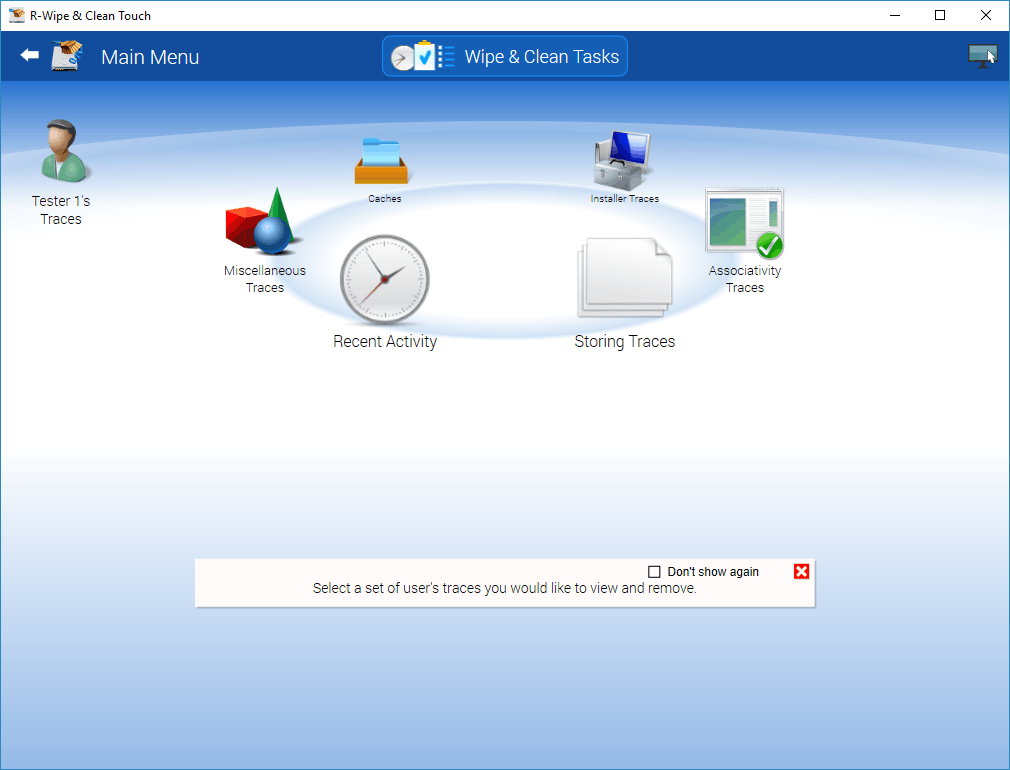
Personal traces panel
• Go to the required section(s) and select the required items.
The section may contain some critical items that may affect system performance. R-Wipe & Clean will throw a warning about these items if you select the entire section.
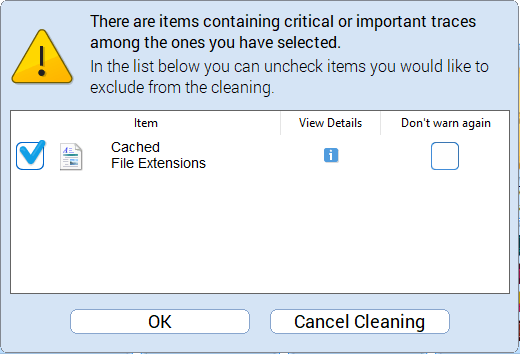
Critical Item warning
Select these items only if you completely understand what you are doing.
• Tap the Clean Now button.
R-Wipe & Clean will start cleaning the computer, and the Deleting and wiping dialog box will appear showing the progress of cleaning.
Personal traces are divided into six parts:
 Recent Activity: More Information...
|
This part allows you to inspect and clean your various recent traces like recently run applications, recent documents, recently visited web sites, etc. Most of these traces are stored in the Registry. |
|
|
List of links to recently used applications. Attention! When cleaning this list, you do not remove the files, only their links . |
|
|
List of links to recently opened documents (registered file types). This list appears in Documents on the Start menu and includes all documents opened in the system, directly from programs, Files and Folders, by taping desktop icons, etc. Attention! When cleaning this list, you do not remove the files, only their links . |
|
|
Shortcuts to pinned and recently opened files, folders, or websites. They may appear either on the Taskbar or Start menu. Attention! When cleaning this list, you do not remove the files, only their links . |
|
|
Shortcuts to recently opened files, folders, or websites in File Explorer or its GUI components like Open or Save dialogs. Any folders in this list pinned to Quick access will be unpinned. Attention! When cleaning this list, you do not remove the files, only their links . |
|
|
A list of applications launched from the Search Results displayed as Jump Lists. |
|
|
List of links to files recently opened directly from programs (on the Open File dialog box). Those files do not include files opened from File Explorer, by taping desktop icons, etc. Attention! When cleaning this list, you do not remove the files, only their links. |
|
|
Your system stores history of files opened with various Windows Shell components. Attention! When deleting and wiping the cache, you do not remove the extensions, only their cached copies. |
|
|
(Windows 10+) |
Activity history helps keep track of the things you do on your device, such as the apps, and services you use, files you open, and websites you browse. |
|
Many application use common dialog boxes, for example, to open and/or save a file. Your system stores various information after using those dialog boxes in the applications. |
|
|
The log of downloaded files that the SmartScreen service examined. |
|
Storing Traces: More Information...
|
This part allows you to inspect and clean some data (mostly insignificant) of your recent activity. Most of these traces are stored in the Registry. |
|
|
List of links to recently opened network folders. |
|
|
Your system stores addresses and other information for unread messages received in e-mail clients. |
|
|
Your system stores a list of application descriptions and their paths for applications that have started at least once. |
|
|
Your system stores various compatibility settings for already removed applications. |
|
|
Your system stores some information about web browser plugins already removed applications. |
|
|
Your system stores some information about Control Panel Extensions. Attention! When cleaning the cache, you do not remove the extensions, only their cached copies. |
|
|
(Windows 10+) |
Your system stores some settings of applications that could customize graphics performance. They may have already been removed but their settings may remain. |
|
Your system stores Desktop shortcut and target paths to applications removed from the system. |
|
|
Your system stores a list of folders for which you changed settings in the View menu in Files and Folders |
|
|
Your system stores a list of files that require administrative privileges to change. Your system will virtualize them if some programs tries to change them without sufficient privileges. |
|
|
Your system stores information used to connect to FTP sites |
|
|
Your system stores links to FTP folders you visited in File Explorer itself or programs using it as an FTP client. |
|
|
Your system stores applications that requested access to device's locations. |
|
|
(Windows 10+) |
Your system stores some information about microphone usage in various applications. |
|
Your system stores some information about volumes located on external media. |
|
|
Stored Notification Display Info (Windows 8+) |
Your system stores some settings for displaying notifications of applications already removed from the system. |
|
(Windows 10+) |
Your system stores some information about notifications. |
|
DOM (Document Object Model) data of the applications that use system's web browser. |
|
|
The Quick Launch bar is not used in Windows since Windows 7, but some applications still can create their Quick Launch shortcuts in any Windows. shell. |
|
|
Your system stores some information about the virtualization of some Registry keys that require administrative privileges for changing their values and subkeys, and some applications running without such privileges try to change them. |
|
|
Your system stores some information about programs launched via System shell. |
|
|
Your system stores sound properties of some applications |
|
|
System stores the sound schemes of removed applications. |
|
|
In the All Programs part of the Start Menu, your system may store some items (like shortcuts and folders) linked to applications that have already been removed from the system. |
|
|
Stored Start Menu Tile Properties (Windows 11+) |
Your system can group installed programs under different categories: Entertainment, Productivity, Utilities & Tools, etc. Entries for unistalled programs may appear in the list of program categories. The system re-creates it based on existing programs when the list is cleared. |
|
Your system stores some information about applications launched during system logon and which have already been removed from the system. |
|
|
Stored System Tray Icon Settings (Windows 11+) |
Your system stores some notification icon settings for programs already removed from the system. |
|
Your system stores main window screen position of the UWP (Universal Windows Platform) programs and games already removed from the system. |
|
|
(Windows 10+) |
Your system stores some information about webcam usage in various applications. |
|
Your system stores some information, such as user names and passwords used to log on to websites. |
|
|
Your system stores some information, such as user names and passwords used to log on to other computers on a network. |
|
|
Your system stores the number of program switching on the Taskbar |
|
|
The number of times Taskbar has been clicked. |
|
|
Various data about the Taskbar Favorites usage |
|
|
Your system stores the number of displays of Jump Views for each program on the Taskbar |
|
|
Your system stores the number of displays of Jump Views for each program on the Taskbar. |
|
|
Your system stores the number of program switching on the Taskbar. |
|
|
(Windows 10+) |
The Windows Spotlight downloads images and ads from Bing and displays them as background wallpapers on the Lock screen. |
Associativity Traces: More Information...
|
This part allows you to inspect and clean information of file type association (file types, protocols, etc.) for already removed applications. Most of these traces are stored in the Registry. |
|
|
Your system can keep the Class Identifiers of COM objects in already removed applications. |
|
|
Your system can store custom associations of file types with applications already removed from the system. Attention! Only extensions with "Yes" in the "Will be Deleted" column will be unregistered (removed). Only links to other applications already removed from the system will be deleted. |
|
|
Your system can keep the file name extensions associated with already removed applications. . |
|
|
Your system stores MIME types registered by already removed applications. |
|
|
System stores the program identifiers of removed applications. |
|
Installer Traces: More Information...
|
This part allows you to inspect and clean information from various installers and clean trances left after uninstalling applications. Most of these traces are stored in the Registry. |
|
|
Your system can store information from Microsoft App Installer that makes sideloading Microsoft Store apps easy. |
|
|
Your system can store information from the distribution kits of already removed applications. |
|
|
Windows Installer stores paths used during the installation of some programs or services. |
|
|
You system can store Windows Installer package files (with patches) of already removed applications. |
|
|
Windows Installer stores the Registry key names used during the installation of some programs or services. |
|
|
You system can store the time of the UWP (Universal Windows Platform) programs and games uninstall. |
|
|
Each UWP (Universal Windows Platform) program is checked for compliance with Microsoft Store policies during installation. |
|
|
You system may suggest you to install various UWP (Universal Windows Platform) programs and games. |
|
|
(Windows 10 and higher) |
You system stores information about Windows Web Experience pack, a system that updates core web components used by Store applications. |
Caches: More Information...
|
This part allows you to inspect and clean some data caches . Some caches will be created again. |
|
|
Cached certificate files used for authentication and data encryption. Included are certificates and Certification Revocation Lists (CRL). Cleaning this cache removes cached copies, not the original files. |
|
|
Your system stores a cache of GDI+ fonts installed in the system Attention! When deleting and wiping the cache, you do not remove the files, only their cached copies. |
|
|
Your system stores a cache of icons of applications that have started at least once to show them faster in Taskbar, Desktop, Start menu, and Program Icons. Attention! When deleting and wiping the cache, you do not remove the files, only their cached copies. |
|
|
Your system stores some information about Shell Extensions (like added shortcut menu items, etc.) of various applications that are installed in the system. Attention! When deleting and wiping the cache, you do not remove the extensions, only their cached copies. |
|
|
A cache of various web content (web pages, images, sounds, video, animations, etc) viewed in applications that use system components for viewing web content. |
|
|
A cache of the Direct3D Shader Caching Library files. |
|
|
A local cache of the DNS Resolver. This cache stores information about previous DNS lookups to enable Windows or your browser find them quicker. It doesn't affect network caches. |
|
|
A cache of web feeds created by some applications. |
|
|
A cache of a shader, a program that runs on the system's Graphic Processing Unit (GPU) to perform specific graphic rendering tasks. |
|
|
Your system creates notification cache for the applications pinned to the Start screen. |
|
|
Files cached by the Security Token Service. |
|
|
For faster access, your system stores several caches of various thumbnail images from certain files. Attention! When deleting and wiping the cache, you do not remove the files, only their cached copies. |
|
|
Your system stores a cache of files with the detailed information about files used by Windows to perform very fast search among most popular files on the computer. Attention! When deleting and wiping the cache, you do not remove the extensions, only their cached copies. |
|
Miscellaneous Traces: More Information...
|
This part allows you to inspect and clean some miscellaneous traces from various sources. Cleaning these traces may give you some sufficient drive space. |
|
|
List of temporary files and folders created by your various programs. |
|
|
(Windows 10+) |
The Azure Active Directory (AAD) Broker Plugin is needed for Windows Store Sign in and.or App Installs in that to free apps can be installed without signing in. |
|
Clipboard content. |
|
|
Your system stores various logs created by the Common Language Runtime (CLR) component of the .Net Framework. You may see file content by taping it. |
|
|
Your system stores application's memory dumps created during the application crash. These memory dumps help the application developers to determine the causes of the crashes. |
|
|
Your system stores diagnostics logs for Windows Explorer. These logs store information that can be used for troubleshooting. |
|
|
(Windows 10+) |
The history of Host Activity Manager (HAM) that manages the state of a packaged application. |
|
List of shortcuts that are on your Desktop but not linked to any existing objects. There are two types of invalid Desktop shortcuts: 1. Invalid shortcuts to objects on hard disks. Most probably they are linked to deleted objects. They are selected by default and will be removed if Invalid Desktop Shortcuts is selected. If you want to keep the links in the system, clear the links to the objects. 2. Invalid shortcuts to objects on removable disks. Most probably they are linked to objects on removable disks that are not present in your system at the moment. They are not selected by default and will not be removed Invalid Desktop Shortcuts is selected. If you want to remove the links from the system, select the links to the objects. |
|
|
Diagnostic logs for troubleshooting of networks |
|
|
List of programs that caused problems to Windows. You may long tap an item to see its report. |
|
|
List of files and folders stored in the Recycle Bin. |
|
|
Registry records of items used by system (mapped network drives, attached devices, etc.) Empty registry traces lists are dimmed. |
|
|
Your system stores files from the Single Sign-On web service that allows you to use single authentication for any of your Windows devices and Microsoft services. |
|
|
Your system stores traces from Start Menu Experience Host Traces helps the Start menu in Windows computers to run smoothly and independently, thus removing any chances of errors or crashes associated with the Startup menu |
|
|
Your system stores a number of environment variables created by already removed applications. |
|
|
Your system stores locations of type libraries that store information about COM objects from already removed applications. |
|
|
Traces of content and setting syncing through your Microsoft account. |
|
|
Logs of the Visual Studio App Center, services for building, testing, releasing, and monitoring of mobile and desktop applications. |
|
|
Databases of viewed web content . Attention! It's recommended to remove these databases together with Temporary Internet Files, Cookies , and History of Internet Explorer. |
|
|
The Microsoft Edge-based WebView control can be used in modern Windows applications to display web content instead of the old IE-based control. |
|
|
The log of updates that your system downloaded and automatically installed. |
|
Home > Touch Interface: Main Panel > Wiping and Cleaning > Cleaning a Computer > Cleaning Personal Traces
- R-Studio Technician: activation using a USB stick
- Data Recovery Guide
- Why R-Studio?
- R-Studio for Forensic and Data Recovery Business
- R-STUDIO Review on TopTenReviews
- File Recovery Specifics for SSD devices
- How to recover data from NVMe devices
- Predicting Success of Common Data Recovery Cases
- Recovery of Overwritten Data
- Emergency File Recovery Using R-Studio Emergency
- RAID Recovery Presentation
- R-Studio: Data recovery from a non-functional computer
- File Recovery from a Computer that Won't Boot
- Clone Disks Before File Recovery
- HD Video Recovery from SD cards
- File Recovery from an Unbootable Mac Computer
- The best way to recover files from a Mac system disk
- Data Recovery from an Encrypted Linux Disk after a System Crash
- Data Recovery from Apple Disk Images (.DMG files)
- File Recovery after Re-installing Windows
- R-Studio: Data Recovery over Network
- How To Use R-Studio Corporate Package
- Data Recovery from a Re-Formatted NTFS Disk
- Data Recovery from an ReFS disk
- Data Recovery from a Re-Formatted exFAT/FAT Disk
- Data Recovery from an Erased HFS Disk
- Data Recovery from an Erased APFS Disk
- Data Recovery from a Re-Formatted Ext2/3/4FS Disk
- Data Recovery from an XFS Disk
- Data Recovery from a Simple NAS
- How to connect virtual RAID and LVM/LDM volumes to the operating system
- Specifics of File Recovery After a Quick Format
- Data Recovery After Partition Manager Crash
- File Recovery vs. File Repair
- Data Recovery from Virtual Machines
- How to Recover Files from a Remote Computer Using R-Studio Standalone License and Its Network Capabilities in Demo Mode
- How to Connect Disks to a Computer
- Emergency Data Recovery over Network
- Data Recovery over the Internet
- Creating a Custom Known File Type for R-Studio
- Finding RAID parameters
- Recovering Partitions on a Damaged Disk
- NAT and Firewall Traversal for Remote Data Recovery
- Data Recovery from an External Disk with a Damaged File System
- File Recovery Basics
- Default Parameters of Software Stripe Sets (RAID 0) in Mac OS X
- Data Recovery from Virtual Hard Disk (VHD/VHDX) Files
- Data Recovery from Various File Container Formats and Encrypted Disks
- Automatic RAID Parameter Detection
- IntelligentScan Data Recovery Technology
- Multi-pass imaging in R-Studio
- Runtime Imaging in R-Studio
- Linear Imaging vs Runtime Imaging vs Multi-Pass Imaging
- USB Stabilizer Tech for unstable USB devices
- Joint work of R-Studio and PC-3000 UDMA hardware
- Joint work of R-Studio and HDDSuperClone
- R-Studio T80+ - A Professional Data Recovery and Forensic Solution for Small Business and Individuals Just for 1 USD/day
- Backup Articles
- R-Drive Image Standalone and Corporate license transferring
- Fixing Windows update error 0x80070643 with R-Drive Image
- Backup with Confidence
- R-Drive Image as a free powerful partition manager
- Computer Recovery and System Restore
- Disk Cloning and Mass System Deployment
- Accessing Individual Files or Folders on a Backed Up Disk Image
- R-Drive Image startup / bootable version
- File Backup for Personal Computers and Laptops of Home and Self-Employed Users
- Creating a Data Consistent, Space Efficient Data Backup Plan for a Small Business Server
- How to Move the Already Installed Windows from an Old HDD to a New SSD Device and Create a Hybrid Data Storage System
- How to Move an Installed Windows to a Larger Disk
- How to Move a BitLocker-Encrypted System Disk to a New Storage Device
- How to backup and restore disks on Linux and Mac computers using R-Drive Image
- R-Drive Image and Virtual Machines
- Undelete Articles
- Get Deleted Files Back
- Free Recovery from SD and Memory cards
- R-Undelete: Video Recovery
- Recovery from an External Device with a Damaged File System
- File recovery from a non-functional computer
- Free File Recovery from an Android Phone Memory Card
- Free Photo and Video File Recovery Tutorial
- Easy file recovery in three steps